
New to One UI 9? Master Your Samsung Galaxy with 10 Must-Know Tips
Unlock the Full Potential of Your Samsung Galaxy with One UI 9: Top 10 Hidden Features You Need to Know
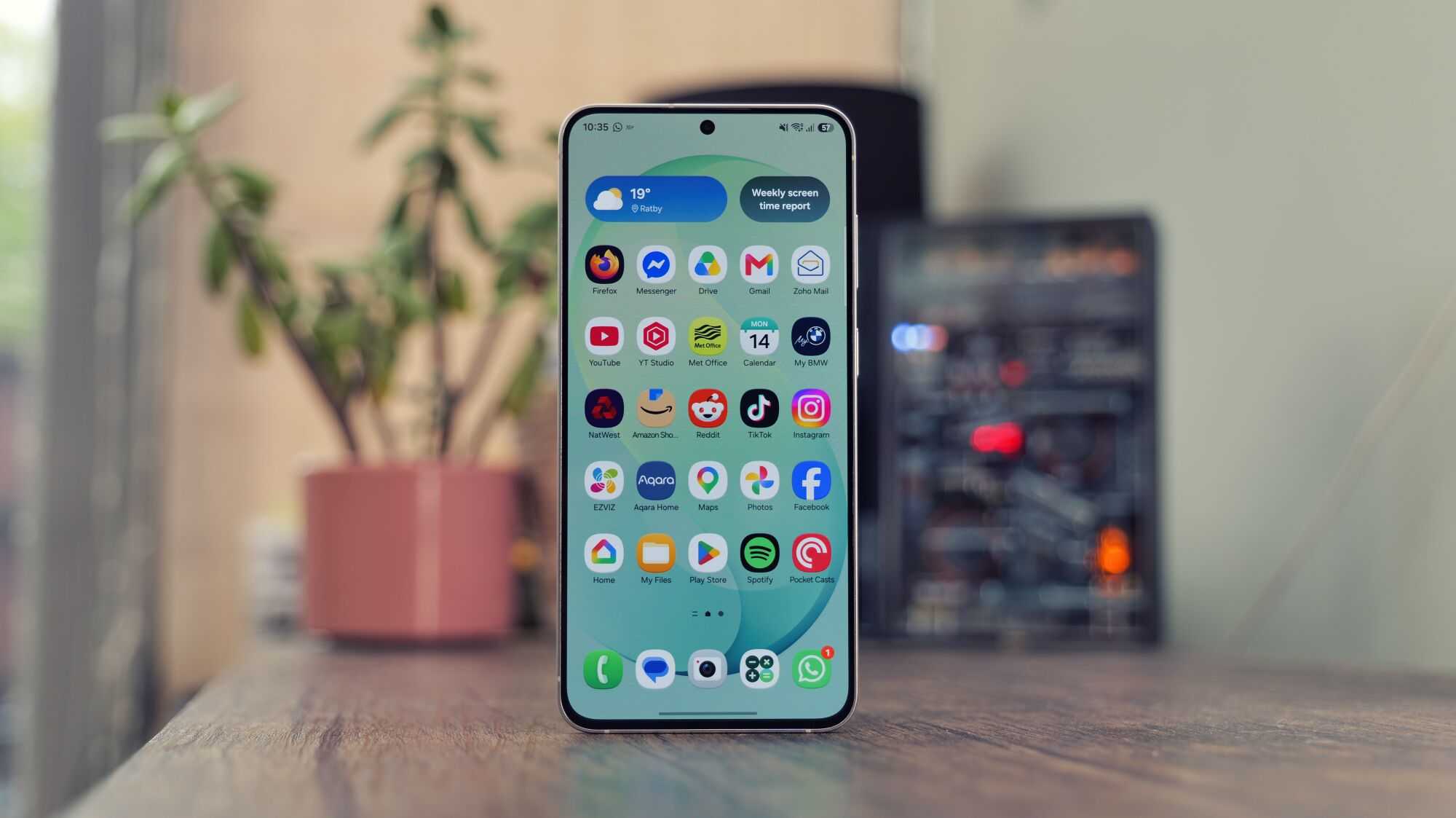
Samsung has long been a leader in smartphone innovation, blending powerful hardware with rich software features that elevate the user experience. With the latest release of Android 17 and the accompanying One UI 9, Samsung is pushing boundaries even further—bringing advanced AI-driven tools and intuitive customization options to a wide range of devices. Whether you’re using a flagship like the Galaxy Z Fold 8 Ultra or a budget-friendly option such as the Galaxy S26 FE, One UI 9 ensures that your device isn’t just keeping up—it’s leading the way.
This guide dives deep into ten lesser-known but incredibly useful tricks and features in One UI 9 that can transform how you use your phone, from smarter video editing to better focus management and motion sickness relief. Let’s explore them one by one.
1. Reframe Videos Instantly with My FanCam – No Gimbal Needed
Imagine capturing a dynamic group scene on a tripod, then having your phone automatically follow your favorite person throughout the entire video—without any manual tracking or expensive gear. That’s exactly what My FanCam does, and it’s now available across most Galaxy phones running One UI 9, including the latest S26 series and Z Fold 8 models.
This feature leverages Samsung’s Galaxy AI to detect multiple people in a video frame and intelligently track a selected subject as they move. It’s ideal for content creators who want cinematic results without complex equipment.
Here’s how to use it:
- Start recording a video with multiple people present—best results come from static shots (e.g., on a tripod).
- Open the video in the Samsung Gallery app.
- Tap the Galaxy AI icon (usually located at the top or bottom of the screen).
- Select My FanCam from the menu.
- The system will analyze the clip and display bounding boxes around each detected person.
- Tap the person you want to follow.
- Choose your preferred aspect ratio:
- 9:16 for TikTok and Instagram Reels
- 16:9 for YouTube
- 1:1 for Instagram posts
- Tap Follow to begin the automated tracking.
- Once satisfied, tap Save Copy to store the new version of the video.
The result? A professionally styled, dynamically focused video that feels like it was shot with a high-end gimbal—right from your phone.
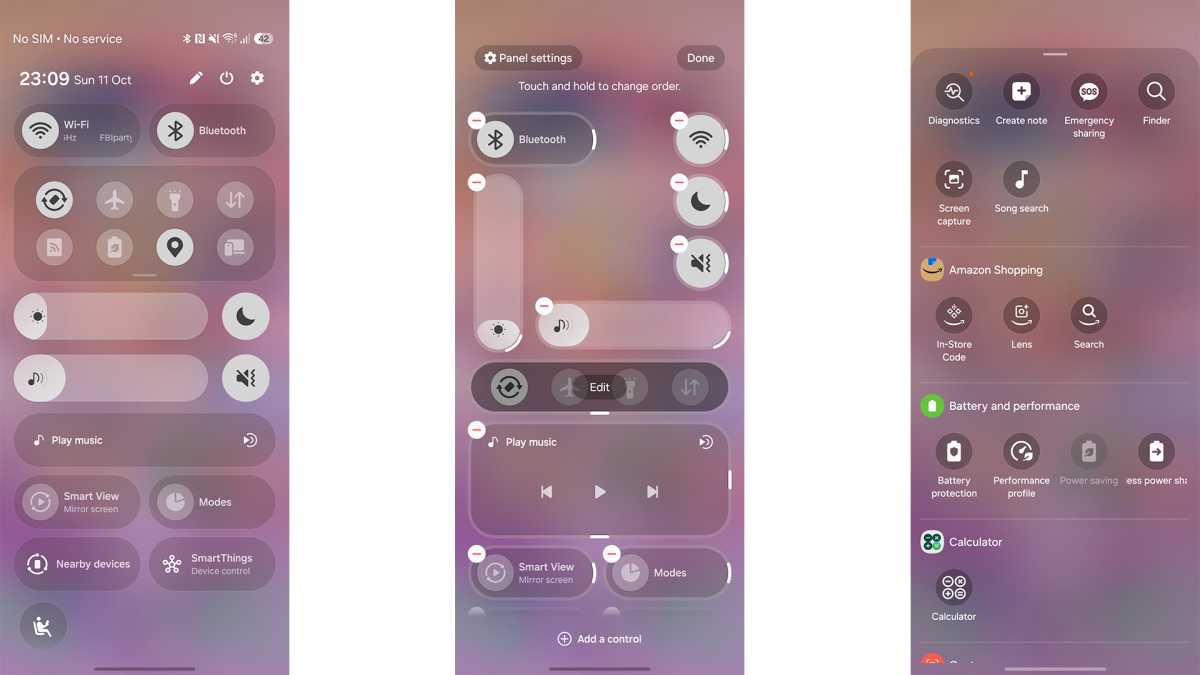
2. Completely Customize Your Quick Panel Layout
The Quick Panel—the panel that slides down from the top of your screen—is no longer just a simple list of toggles. In One UI 9, it’s become a fully customizable dashboard tailored to your daily habits.
You can now reconfigure everything: slider orientation, button size, media controls, and even add or remove tiles entirely. Whether you prefer horizontal sliders for faster access or want a massive media player for music lovers, this tool gives you full control.
To personalize your Quick Panel:
- Swipe down from the upper right corner of the screen to expand it fully.
- Tap the Pencil Icon to enter edit mode.
- Press and hold the edges of brightness or volume sliders to resize them or switch their orientation (vertical ↔ horizontal).
- Tap the Media Player Tile to adjust its size—make it tiny or blow it up to dominate the panel.
- Drag inactive buttons from the bottom section into the active area to add them.
- Rearrange icons by dragging them into your preferred order.
- When done, tap Done to save your layout.
This level of personalization turns your Quick Panel into a productivity powerhouse—no more scrolling through cluttered menus.
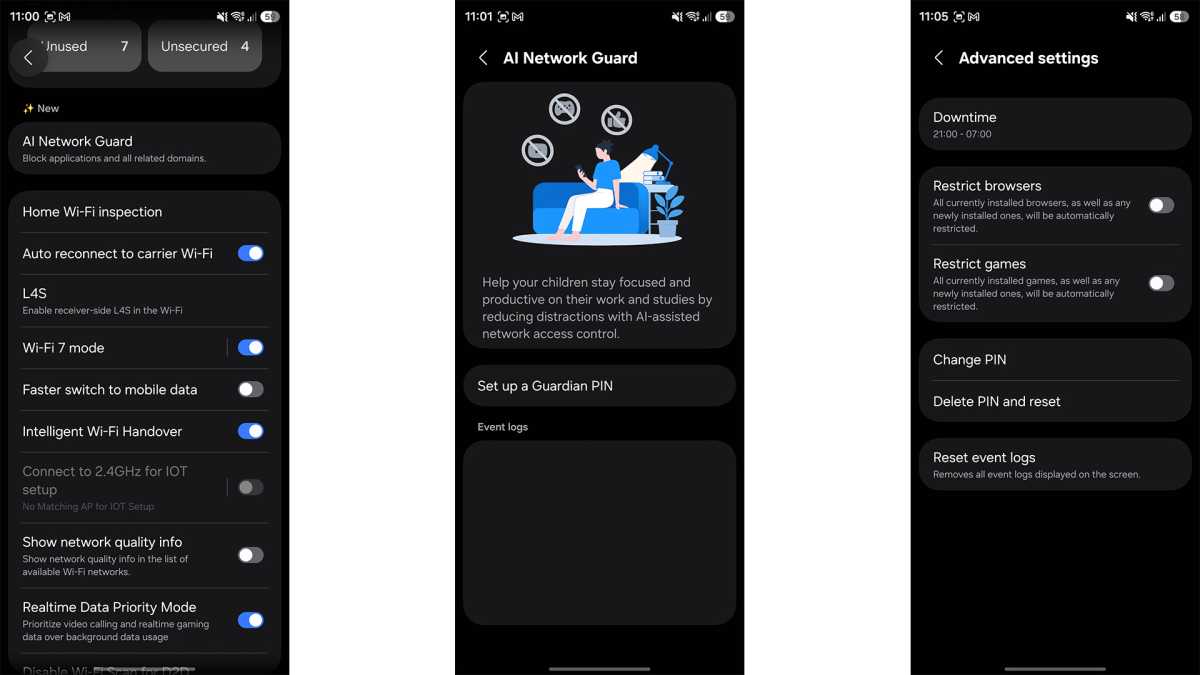
3. Break the Scroll Cycle with AI Network Guard
We’ve all been there: unlocking our phone for a quick check, only to find ourselves hours later mindlessly scrolling through social media feeds. For many, this “doomscrolling” habit undermines focus, reduces productivity, and drains mental energy.
Enter AI Network Guard, a smart network-blocking feature designed to break those addictive cycles. Originally intended as a parental control tool, it’s equally effective for adults struggling with digital distractions.
When enabled, AI Network Guard blocks selected apps from accessing the internet—forcing you to either wait until the timer ends or enter a six-digit Guardian PIN to unlock them. This small barrier often breaks the impulse loop, giving you space to refocus.
How to set it up:
- Go to Settings > Connections > Wi-Fi.
- Tap the three-dot menu in the top-right corner and select Intelligent Wi-Fi.
- Tap the "Intelligent Wi-Fi" label repeatedly until you see the message: "Connectivity Labs is enabled."
- Open Connectivity Labs and locate AI Network Guard.
- Set a Guardian PIN (6 digits).
- Tap Manage Restrictions, then choose Restrict Apps.
- Select the apps you want to block (e.g., Instagram, TikTok, Candy Crush).
- Use the three-dot menu again and go to Advanced Settings.
- Tap Downtime to schedule automatic blocking periods—perfect for work hours, study sessions, or bedtime.
For extra accountability, have a trusted friend or family member set the PIN for you. It’s not about punishment—it’s about creating healthy digital boundaries.
4. Say Goodbye to Motion Sickness with Motion Assist
Traveling by car, bus, or boat can be miserable if you suffer from motion sickness. Reading, watching videos, or even just looking at screens while in motion often triggers nausea, dizziness, and discomfort.
One UI 9 introduces Motion Assist, a game-changing feature powered by your phone’s built-in gyroscope. It displays subtle dots along the edges of the screen that move in sync with the device’s motion, helping your brain reconcile visual input with physical movement.
This counteracts the sensory mismatch that causes motion sickness—making it possible to read, watch videos, or browse online during transit without feeling queasy.
While Apple introduced a similar function in 2024, Samsung’s integration into Android 17 via One UI 9 means it’s now widely available across compatible Galaxy devices. Simply enable it in Settings > Accessibility > Motion Assist and start enjoying smoother mobile experiences on the go.
Turn On Motion Assist for Smarter Screen Interaction
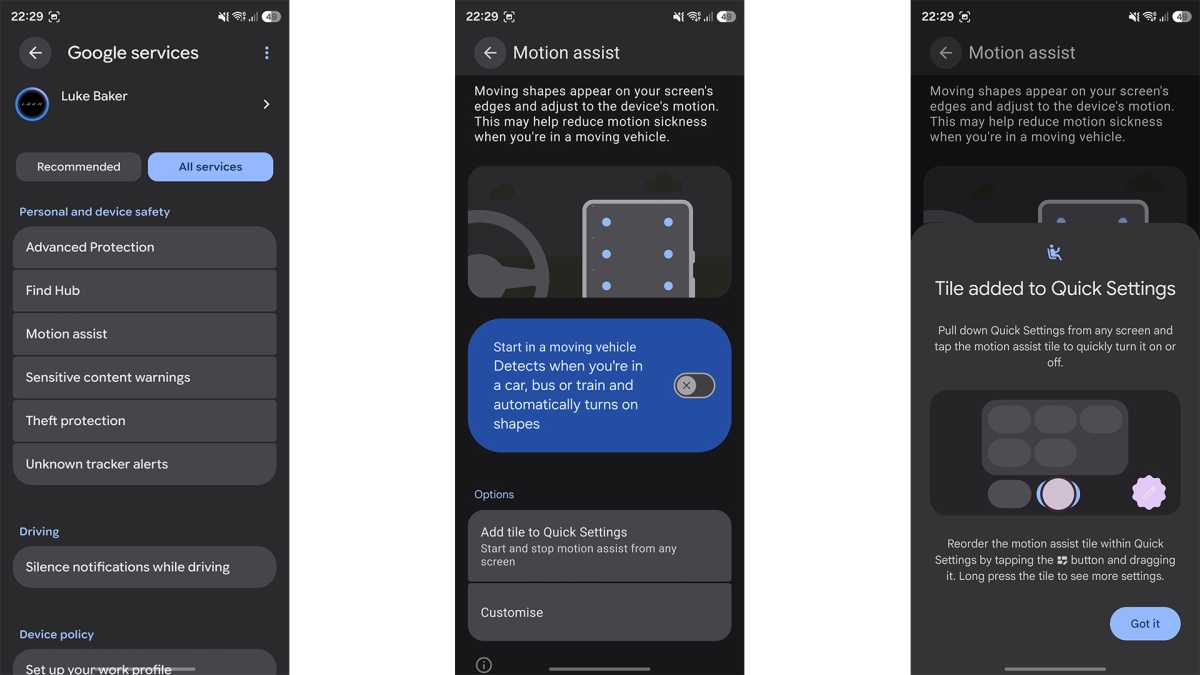
If you're looking to enhance your smartphone experience with subtle yet powerful visual cues, Motion Assist is a feature worth exploring. Designed to help users stay aware of their surroundings while on the move, this tool automatically displays small, customizable dots on your screen when you’re traveling in a vehicle—whether it’s a car, bus, or train.
To activate Motion Assist:
- Open your phone’s Settings app and scroll down to find the Google services menu.
- Tap on All services to access a comprehensive list of available features.
- Locate the Personal & device safety section and select Motion Assist.
- Toggle on the option labeled Start in a moving vehicle. Once enabled, your device will use its built-in sensors—such as accelerometers and gyroscopes—to detect motion patterns typical of transportation. When detected, the visual indicators (dots) will appear seamlessly on your screen.
While automatic detection works well in most cases, it isn’t flawless. To ensure you have full control over when the feature activates, tap Add tile to Quick Settings. This adds a dedicated toggle directly to your notification shade, allowing you to turn Motion Assist on or off instantly—perfect for situations where you want to disable it manually, such as during walking or biking.
For those who want to personalize how these visual cues appear, tap Customise. You’ll be able to adjust several settings: - Choose from four different shapes: circle, square, pentagon, or diamond. - Modify the opacity so the dots blend subtly into your screen without distracting from content. - Select a color theme that matches your preferred aesthetic or improves visibility under various lighting conditions.
These customization options make Motion Assist not just functional but also visually harmonious with your device’s design language.
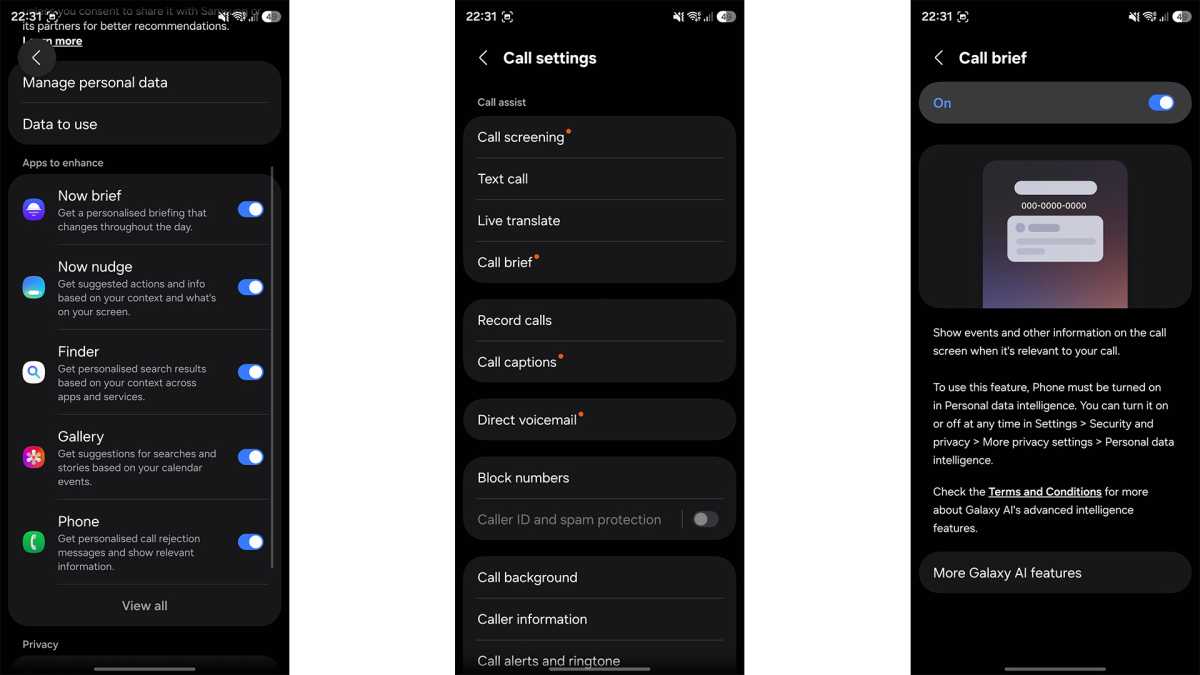
Make Calls Smarter with Call Brief
One of Samsung’s most underappreciated tools is Call Brief, an intelligent assistant that quietly enhances your calling experience by delivering context-aware information at just the right moment. Unlike other features that require constant monitoring, Call Brief only surfaces relevant data when it detects meaningful conversation topics—making it both unobtrusive and highly effective.
Imagine this scenario: You’re discussing scheduling a meeting with a colleague. As soon as the topic comes up, Call Brief may automatically suggest creating a shared calendar event, adjusting the time based on each person’s local timezone. No need to manually check time zones or double-check availability—everything happens seamlessly.
Even more useful is its ability to display the receiver’s local time before you dial an international number. This prevents the awkwardness of calling someone late at night or early in the morning due to a time zone misunderstanding. It’s like having a built-in travel assistant embedded within your phone’s call interface.
To enable Call Brief:
- Go to your phone’s Settings app.
- Tap Security and privacy, then select More privacy settings.
- Navigate to Personal data intelligence and ensure the toggle next to Phone app is turned on.
- Return to your home screen and open the native Samsung Phone app.
- Tap the three-dot menu in the top-right corner and choose Settings.
- Under the Call Assist section, locate and tap Call brief, then switch it to On.
Once activated, Call Brief begins learning and adapting to your communication habits—delivering smarter, faster, and more intuitive call experiences over time.
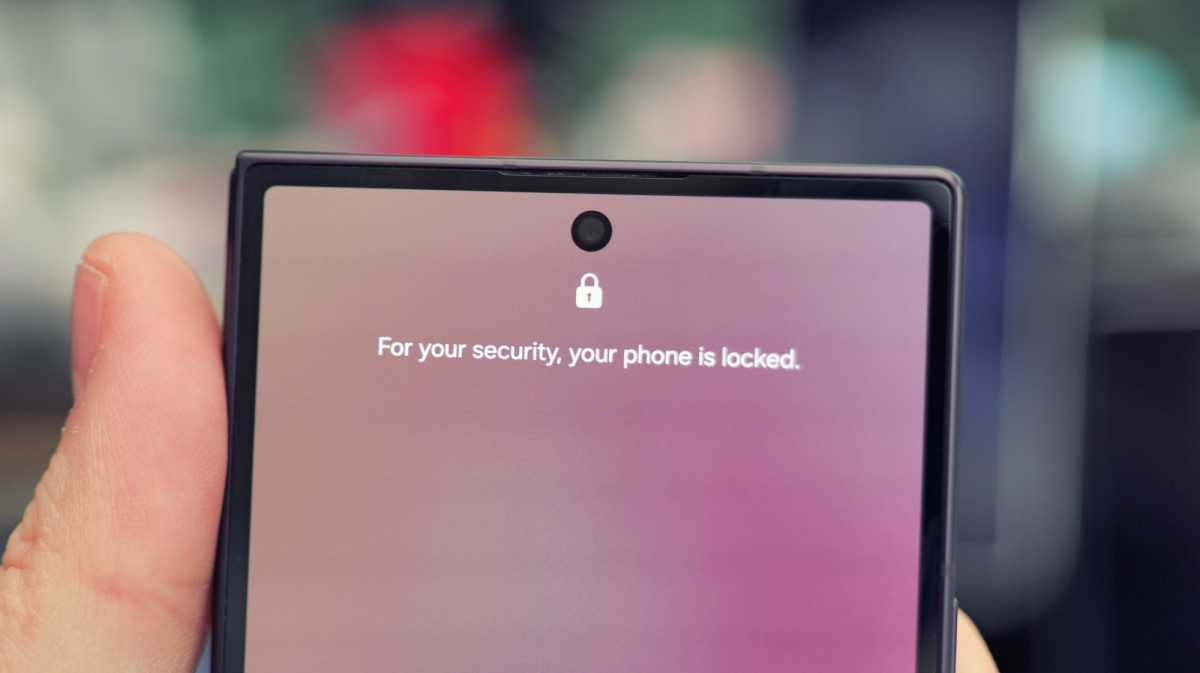
Protect Your Data with Quick Lockdown Mode
While biometric authentication like facial recognition and fingerprint scanning offers convenience, they also introduce security vulnerabilities. A determined individual could potentially unlock your phone by holding it up to your face or placing your finger on the sensor—especially if you’re distracted or asleep.
Samsung addresses this risk with Quick Lockdown Mode, a powerful security feature that disables all biometric functions with a single button combination. Once triggered, even if someone gains physical access to your device, they’ll be forced to enter your PIN, password, or pattern to unlock it—significantly raising the barrier against unauthorized access.
Here’s how to use it:
- Press and hold the Volume Down button and the Power (Side) button simultaneously.
- You’ll see standard power options appear on-screen—but crucially, your device is now in Lockdown Mode.
- Biometric authentication (face and fingerprint) is immediately disabled.
- To regain access, simply enter your PIN, password, or pattern.
- After entering your credentials, Lockdown Mode is automatically deactivated. The next time you lock your phone, biometrics will function normally again.
This feature is ideal for high-risk environments, public spaces, or anytime you’re concerned about someone gaining temporary access to your device. It’s a discreet but robust layer of protection that empowers you to take immediate control of your phone’s security.
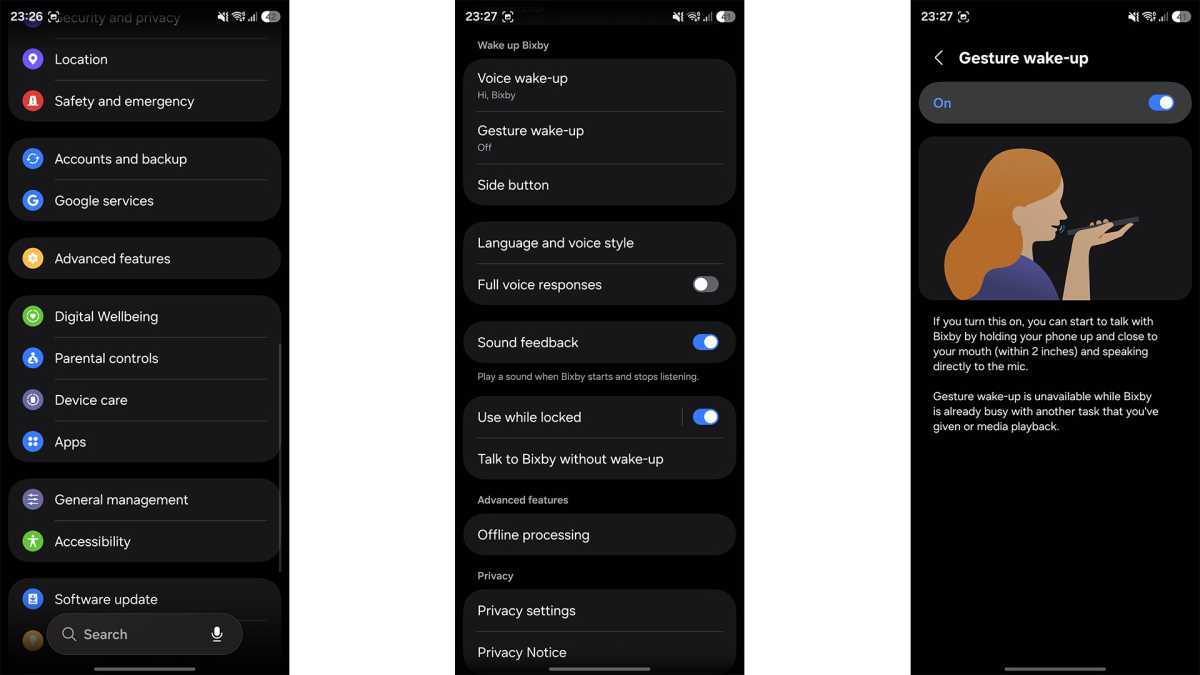
Unlock Bixby’s Full Potential with Raise to Speak
Despite being overshadowed by newer AI assistants like Gemini, Bixby remains a powerful tool for deep device control—especially for users who value automation and hands-on customization. While many dismiss Bixby as outdated, its ability to execute complex, multi-step commands makes it uniquely suited for advanced tasks.
For example, you can say: “Find photos from my trip to Tokyo last summer, create a new album named ‘Tokyo Memories,’ and share it with my sister.” Bixby handles every step without requiring manual navigation through multiple apps.
Now, Samsung has introduced a game-changing gesture: Raise to Speak. This allows you to activate Bixby simply by lifting your phone to your ear—no need to press any buttons or say “Hi Bixby” out loud. This is especially helpful if you’ve assigned the power button to wake up Gemini instead.
To set it up:
- Open the Settings app.
- Scroll down and tap Advanced features.
- Select Bixby from the list.
- Find the Gesture wake-up option and toggle it On.
With this enabled, just pick up your phone and bring it close to your mouth—Bixby will listen and respond instantly. Whether you’re adjusting volume, sending messages, or managing files, this gesture-based activation makes Bixby faster and more intuitive than ever.
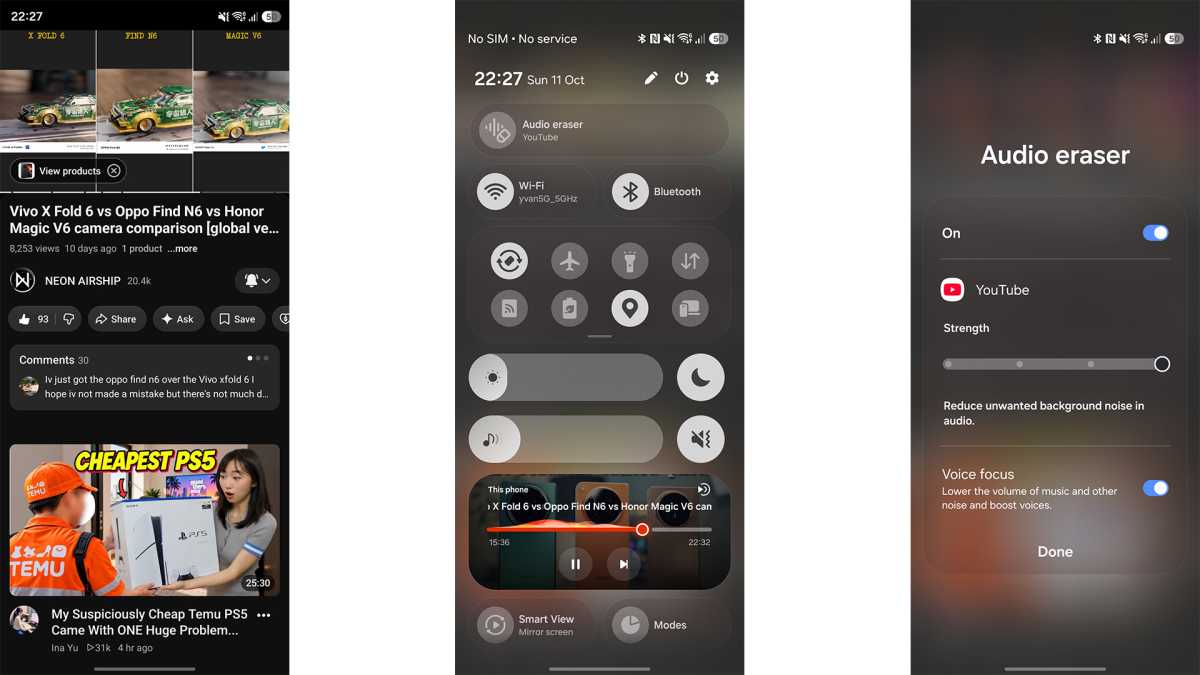
Enhance Video Listening with Audio Eraser
Originally designed to clean up audio during video recording, Audio Eraser has evolved into a must-have feature for content consumers. It allows you to suppress unwanted background noise—like music, chatter, or ambient sounds—while boosting the clarity of speech.
This feature shines when watching tutorials, vlogs, or educational videos where background music drowns out the speaker’s voice. Instead of switching to another video, you can use Audio Eraser to mute the music and amplify the vocals, effectively transforming a frustrating viewing experience into a clear, focused one.
The technology uses AI-driven sound separation to isolate voices from other audio elements, making it incredibly accurate even in noisy environments.
Simply open YouTube, TikTok, or Netflix, start playing a video, and look for the Audio Eraser icon in the playback controls (usually near the volume slider). Tap it to activate, and let the magic happen.
It’s a quiet revolution in media consumption—one that turns chaotic audio into crisp, intelligible sound with just one tap.
Unlock the Full Potential of Your Samsung Device with One UI 9
One UI 9 brings a wave of powerful new features and deeper customization options that transform your Samsung Galaxy smartphone into a truly personalized powerhouse. Whether you're a casual user looking to streamline your experience or a tech enthusiast eager to push the boundaries of what your phone can do, this update delivers something for everyone.
Master Media Consumption with Audio Eraser
If you've ever found yourself watching videos on YouTube, TikTok, or Netflix while someone nearby is talking—whether it's background chatter, loud music, or distracting noise—One UI 9 introduces a game-changing tool: Audio Eraser. This feature is designed to help you focus on the content you’re watching by intelligently removing unwanted ambient sounds.
Here’s how it works: 1. Start playing any video on YouTube, TikTok, or Netflix. 2. Swipe down from the top-right corner of the screen to open the Quick Panel. 3. You’ll now see a new Audio Eraser button at the top of the panel—tap it. 4. Choose your preferred level of noise reduction and decide whether to enable Voice Focus, which prioritizes speech clarity while suppressing other sounds.
This feature isn’t just convenient—it’s transformative for users who watch content in shared spaces, commute on noisy public transport, or simply want a more immersive viewing experience without headphones.
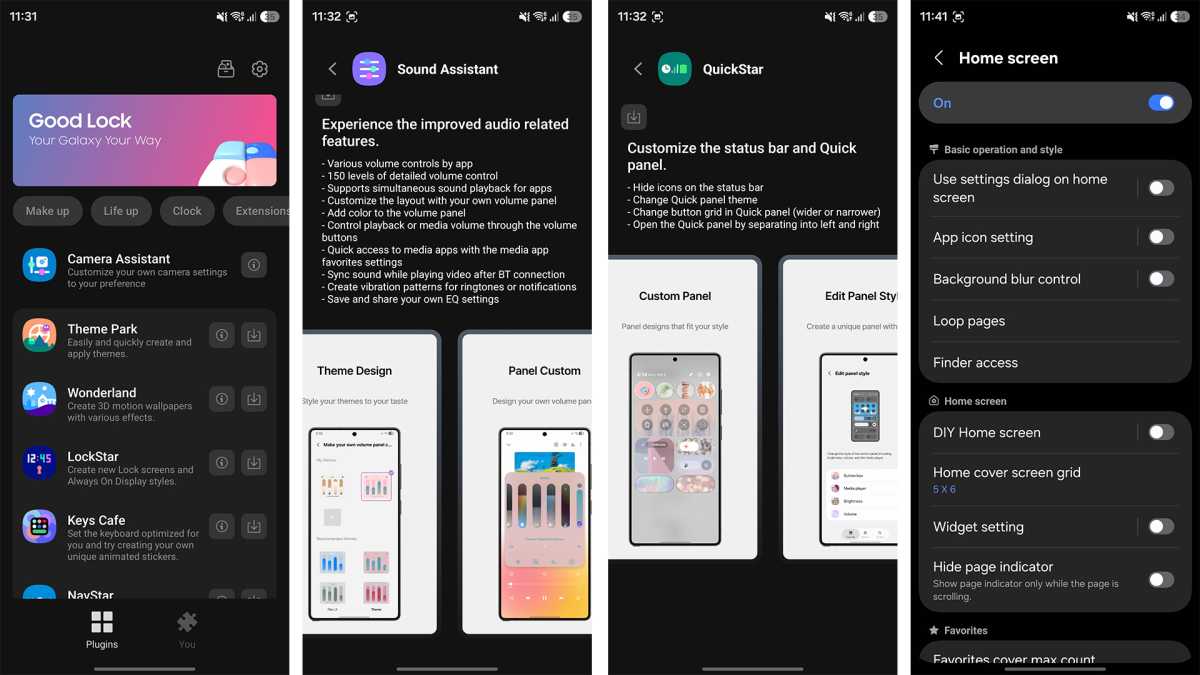
Take Control with Good Lock: The Ultimate Customization Suite
While One UI 9 offers a robust set of built-in personalization tools, true power lies in going further. Enter Good Lock, a modular customization platform available through both the Google Play Store and the Galaxy Store. Once installed, you gain access to an expansive ecosystem of 25 distinct modules—each one unlocking unique ways to tailor your device’s behavior, appearance, and functionality.
You don’t need to be a developer to benefit from these tools; most are intuitive and accessible right out of the box. Here are some standout modules that elevate the user experience:
-
Home Up: Redefine your home screen entirely. Say goodbye to rigid grids. With Home Up, you can rearrange app icons and widgets freely across the screen, create custom folder layouts, and even disable the traditional app drawer if you prefer a minimalist, clutter-free interface. It’s perfect for users who want complete creative freedom over their digital workspace.
-
Sound Assistant: This module gives you granular control over audio settings. Customize volume levels per app, apply custom equalizer presets, adjust audio balance, and fine-tune sound profiles based on your environment. Whether you're gaming, listening to music, or watching a movie, Sound Assistant ensures optimal audio performance tailored to your preferences.
-
QuickStar: Tired of a crowded status bar? QuickStar lets you hide unnecessary icons like the alarm, NFC, or battery saver indicators. Even better, you can add real-time network speed monitoring directly to the status bar—ideal for users who want to keep track of connection quality without opening settings.
-
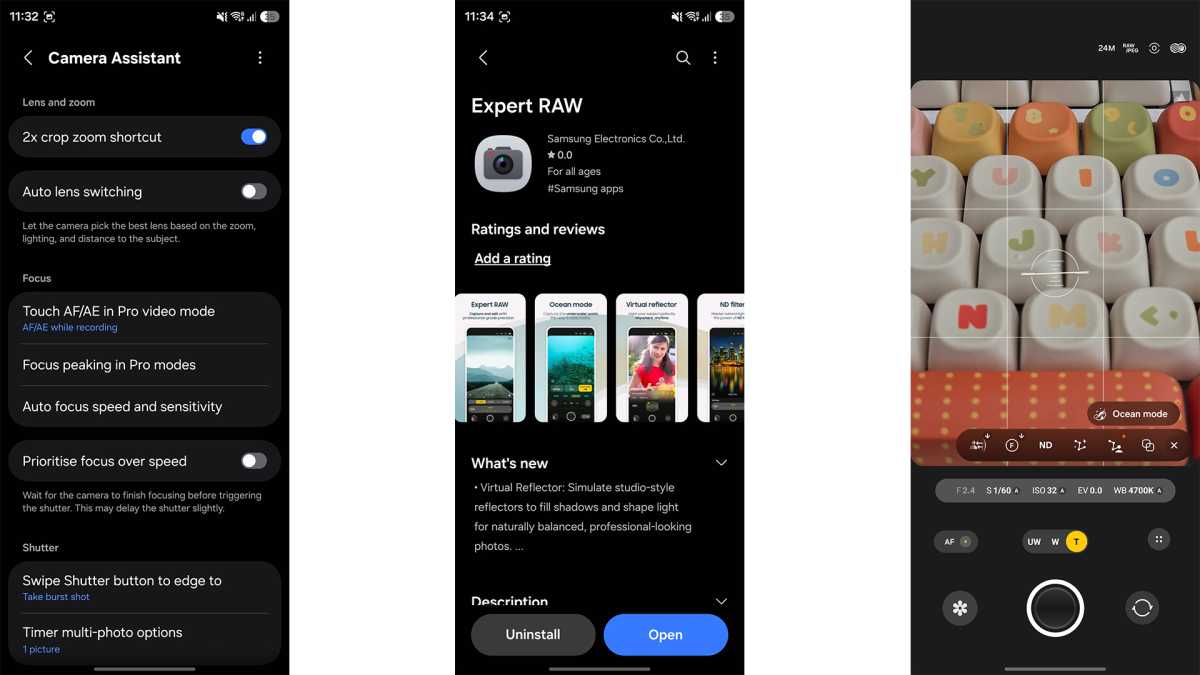
Camera Assistant: A must-have for photography lovers. Built into Good Lock, this module enhances Samsung’s native camera app with pro-level adjustments. Disable automatic lens switching so you stay in control of which camera you use. Lower default sharpening for smoother images. Add support for anamorphic lenses, allowing cinematic depth-of-field effects within the standard camera app. No need to switch to third-party apps—your phone becomes a full-fledged shooting tool.
-
Expert RAW: For serious photographers, this is where things get next-level. Expert RAW is a standalone app developed by Samsung specifically for professional-grade photography. It includes advanced features such as:
- Astrophotography Mode with Star Tracking: Capture stunning long-exposure shots of the night sky with precise tracking of celestial movements.
- Digital ND Filter Simulation: Mimic the effect of physical neutral density filters, enabling longer exposures during daylight hours to achieve silky motion blur in waterfalls or traffic.
- Virtual Reflector: Simulate a fill light using your phone’s screen to bounce light onto shadowed areas of your subject—perfect for portrait work in low-light environments.
These tools empower users to experiment with techniques once reserved for high-end DSLRs or mirrorless cameras—right from their smartphone.
Why One UI 9 Is a Game-Changer
From smarter media controls to deep system-level customization, One UI 9 proves that Samsung continues to innovate beyond the hardware. Whether you're enhancing your entertainment experience with Audio Eraser, reimagining your home screen with Home Up, or capturing breathtaking photos with Expert RAW, the possibilities are endless.
If you’re not already using a compatible Samsung Galaxy device, now is the perfect time to upgrade. Check out the latest lineup of best Samsung Galaxy phones to experience all the cutting-edge features One UI 9 has to offer. With the right device and the right tools, your smartphone becomes not just a communication device—but a versatile creative companion.
Post a Comment for "New to One UI 9? Master Your Samsung Galaxy with 10 Must-Know Tips"