
I Ditched Phone Link for a Superior Clipboard Sync Method
Phone Link provides a simple method to link your phone with your computer.. This allows you to respond to messages, answer calls, and access and use your phone's applications directly from your computer. However, I had to stop using Phone Link because it suddenly stopped working and no longer recognized my Android phone. Reinstalling the app didn't resolve the issue, as the Android setup process would not complete regardless of what I tried.
I primarily used Phone Link to synchronize text, allowing me to copy and paste between my phone and computer instantly. With Phone Link no longer available, I searched for alternative methods to sync the clipboard between my Android device and PC, and discovered several improved options using my keyboard app and Google's built-in Quick Share.
SwiftKey offers an excellent clipboard synchronization function.
Keyboard-enabled cross-device copying and pasting
The simplest method to synchronize your phone's clipboard with your PC is if you currently use the SwiftKey keyboard.I've been using SwiftKey as my alternative to Gboard for a year now,and the clipboard synchronization is one of the features that kept me loyal to it.
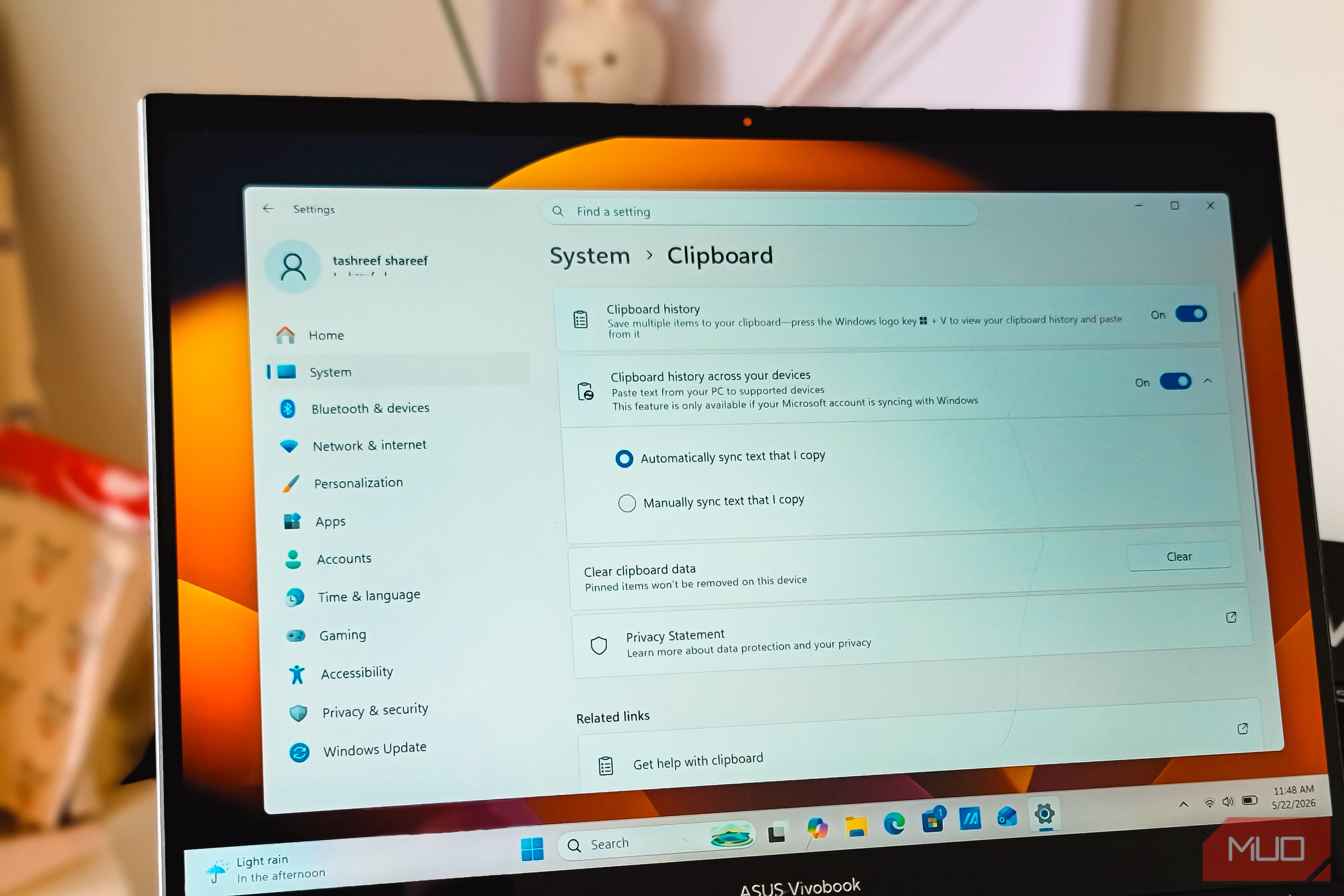
To make this function, you must sign in to SwiftKey and your Windows PC using the same Microsoft account. On Android, launch the SwiftKey app and tapRich input, then Clipboard, and turn on Sync clipboard history. On Windows, navigate toSettings > System > Clipboard, turn on Clipboard history, and then enable Cross-device clipboard history. Pick Sync text automatically as I copy itif you desire each copy to be transmitted immediately.
After activating sync on both devices, anything you copy on one device is instantly accessible on the other. It operates in the background, so there's no need to launch an app or press any buttons. The history keeps track of the most recent copied items, and you can mark the ones you want to retain for a longer period. This is the most seamless phone-PC clipboard experience I've encountered, and it doesn't require Phone Link to be running in the background.
If you're currently utilizing SwiftKey as your primary keyboard, this is the optimal choice. If not, the following two alternatives function without requiring you to switch keyboards.
Quick Share is capable of sharing text as well
Manual copy-paste for Gboard users
Now, if you favor Gboard instead of SwiftKey, there are alternative methods to transfer text between devices. IReplaced Phone Link with Quick Share on my computer for transferring files, and although it may not be as quick as Blip or LocalSend, it is more dependable than both, which is why I have continued using it. It turns out, Quick Share can also transfer text between devices.
To access it, press and hold any text on your phone, then tapShare, pick Quick Share, and select your PC from the device list. A notification appears on Windows within a second, indicating that the text is on your clipboard, and you can paste it usingCtrl + V. Heading the opposite way, copy text on Windows withCtrl + C, launch the Quick Share application, and insert it into the app. It subsequently transfers the text to your phone's clipboard.
In contrast to SwiftKey, Quick Share does not automatically synchronize. You need to manually send each snippet, which can be beneficial for privacy as not all copied content is transmitted.
A peculiar observation I've made is that Quick Share fails to function in apps that lack a system-level share button, such as Obsidian when in Editing view. The solution is to switch fromEditing View to Reading View, then select and share the text with the same ease.
LocalSend can transmit more than just files
A platform-agnostic solution that processes text in a consistent manner
If you favor LocalSend instead of Quick Share, you can still transfer text between devices using a similar method, but with a different application. LocalSend is a free, open-source tool for transferring files that works on Windows, Mac, Linux, Android, iOS, and even Google TV. It performs the task over your local network without requiring any accounts or logins.
I primarily use LocalSend for transferring files, but it also works great for clipboard text. On Android, long-press the text, then tapShare, pick LocalSend, and choose your PC from the list. The text appears in the LocalSend window on Windows, and you can copy it to your clipboard from there. Transmitting text from PC to phone follows the same process via the app.
An advantage over Quick Share is that LocalSend supports a wider range of platforms, making it a better choice if you have a Mac or a Linux device. Transfers occur within your local network and are encrypted from end to end, which is comforting when sharing confidential information. This is the recommendation I would make if your system includes more than just Android and Windows.
KDE Connect serves as an authentic alternative to Phone Link
Effortless clipboard synchronization compatible with all Android devices
Now, if you're seeking a genuine substitute for Phone Link, nothing surpasses KDE Connect.KDE develops some of the top free Windows applications., and KDE Connect is right at the top of the list. It offers notifications, file transfer, media controls, and most importantly for me, clipboard synchronization, all without restricting features to a particular phone brand.
Clipboard synchronization works seamlessly across all devices. Copy text on your Windows PC, and it appears immediately on your phone's clipboard. Copy something on Android, then tap the KDE Connect notification, and it will be on your PC. You can set it to push automatically or manually, based on the level of control you prefer over what moves between devices.
Clipboard synchronization in Phone Link is essentially restricted to Samsung Galaxy devices., and other Android users need to install SwiftKey to achieve similar features. KDE Connect doesn't concern itself with your phone's brand. As long as both devices are connected to the same Wi-Fi network, the clipboard functions identically on a Pixel as it does on a Xiaomi or a OnePlus. This is significant if you switch between non-Samsung phones.
Syncing clipboard without Phone Link
SwiftKey offers the smoothest synchronization among all options, but this is mainly because I already use it as my primary keyboard. If you're not willing to switch keyboards, Quick Share and LocalSend handle the manual process adequately, although neither provides the same level of ease as Phone Link's clipboard did when it was functioning properly.
KDE Connect is the solution I would recommend most to people looking for a Phone Link alternative that handles clipboard synchronization properly, without being tied to Samsung. Choose the one that works best for your setup, but understand that you no longer need Phone Link to transfer text between your phone and computer.
Post a Comment for "I Ditched Phone Link for a Superior Clipboard Sync Method"