
I stopped using Task Scheduler after finding VS Code's hidden automation layer
Beyond the Build Button: Exploring VS Code's Task Runner
You've probably been using VS Code's task runner as nothing more than a build shortcut. For years, I was just using it to map Ctrl + Shift + B to compile something, and then I'd completely forget the feature exists until the next time I needed to change it. Once I began poking around tasks.json, I realized how easy it was to program other tasks into it and use it as an impromptu automation platform.
The task runner can run shell commands, chain tasks together, and inject environment variables all from a JSON file that follows your repo. It won't run anything on a time-based schedule, but tasks can be mapped to keybindings or set to execute on a trigger. Its niche is for tasks that specifically live within the context of a project, so the automation stays with the development environment instead of residing separately in Task Scheduler.
The Configuration Behind the Scenes
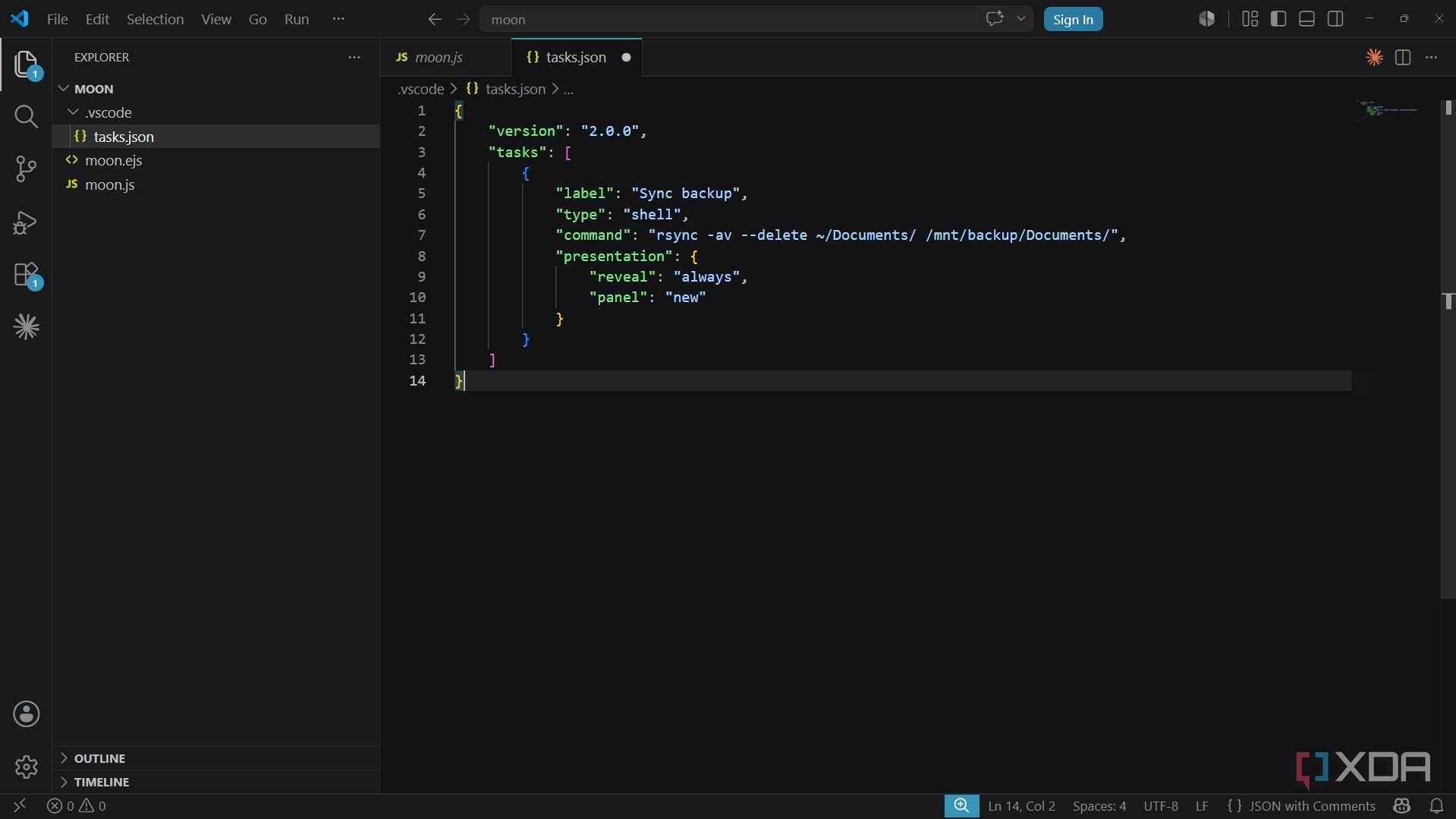
The configuration for VS Code's task runner is inside of .vscode/tasks.json at the root of your project. At its most basic, every task gets a label, a type, and a command. For command-line tasks (which cover most general-purpose automation), you'd just put "shell" as the type. The commands will run as if you'd typed them into the terminal yourself. Here's a simple example:
{
  "version": "2.0.0",
  "tasks": [
    {
      "label": "Sync backup",
      "type": "shell",
      "command": "rsync -av --delete ~/Documents/ /mnt/backup/Documents/",
      "presentation": {
        "reveal": "always",
        "panel": "new"
      }
    }
  ]
}
Label, type, and command are all pretty straightforward, but this example also uses a presentation block with reveal and panel options:
- reveal: always ensures the terminal panel opens every time the task runs, so you're never guessing whether something actually executed.
- panel: new opens up a fresh terminal instance each time, which keeps output from different tasks from colliding in the same window.
The presentation block is optional, of course, but I like to include it in almost every task that I have scripted out. Another property that I frequently use is dependsOn. Adding it to a task allows you to specify that it should only run once a prior task has completed. If your task depends on multiple others finishing first, you can pair it with the dependsOrder: sequence option, so it only works if the tasks finished in the specified order. The equivalent configuration in Task Scheduler is much messier, as it requires separate entries and exit-code logic. Plus, I find a JSON file easier to control and configure than the Task Scheduler wizard.
Tasks That Changed My Workflow
Migration was easier than I'd expected. One of the first tasks I migrated over was a recurring rsync backup job (similar to the example above). Task Scheduler could handle the job fine, but the logs were inconvenient to access, and the task would silently fail whenever it tried to run without the remote share being mounted. Moving it over to VS Code allows me to trigger it manually, watch the live output in the terminal, and know immediately if something goes wrong. For the type of job where you need eyes on the output, this is the safer route.
Another thing I started doing was using tasks to manage local services that needed to be started during development. Things like a database or dev server need to be running before I can actually work. A task that starts the service and opens localhost in the browser is a much cleaner method than manually typing the commands into the terminal every time I want to work on something. Chaining those steps with dependsOn makes it so the browser only opens up once everything has successfully started. It's a simple task to configure, but the time it saves really adds up.
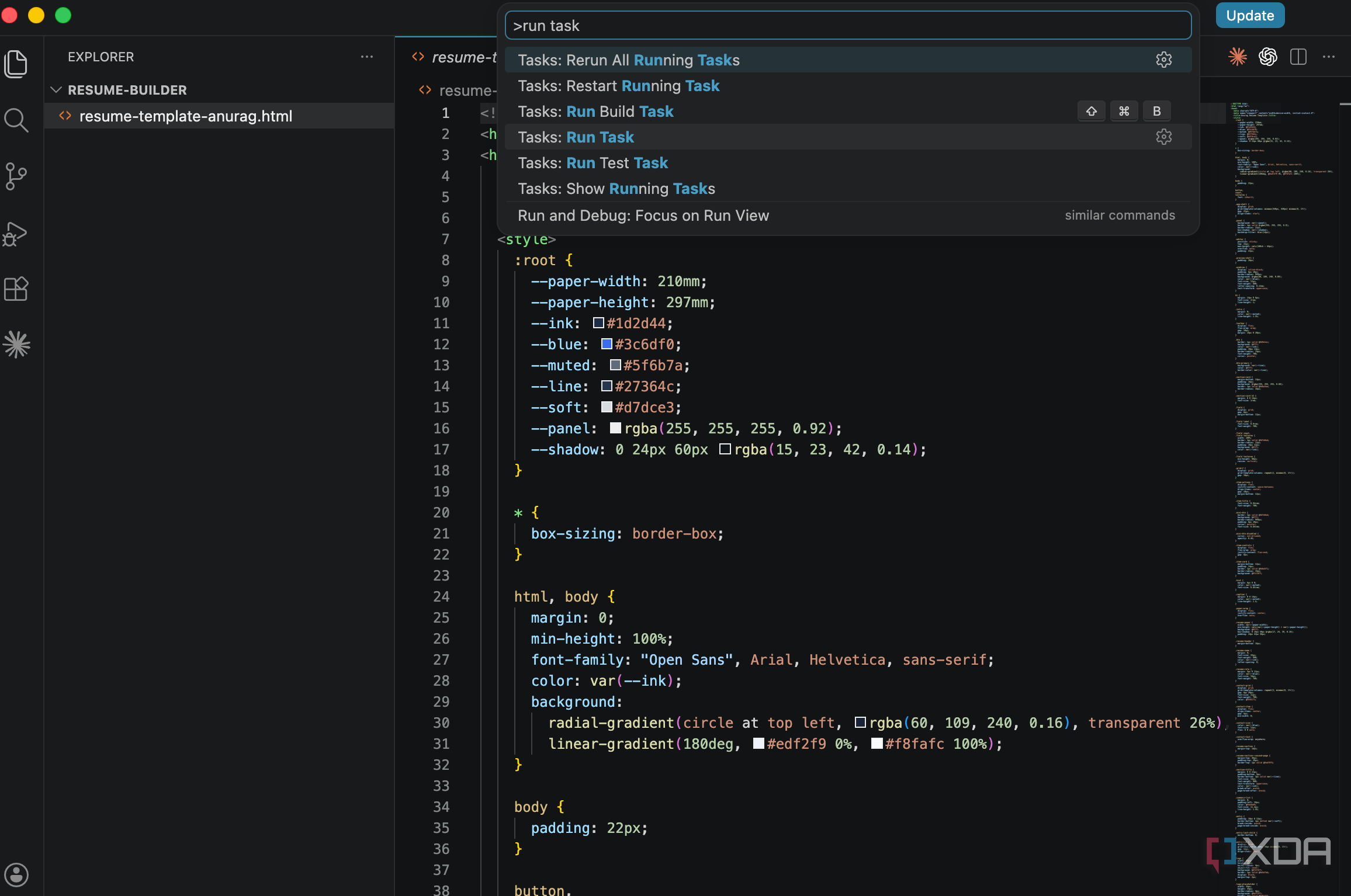
There are some other handy triggers you can set up, too, like runOptions: { "runOn": "folderOpen" }. Using this on a task will make it fire any time you open the workspace. I have a lightweight task that pulls the latest changes and checks for dependency updates, so every time I open a project, it's already current. Using a task runner for invisible upkeep like that is what it excels at.
Limitations of VS Code's Task Runner
Task Scheduler still owns anything time-based. Jobs can't be scheduled with VS Code. There's no native way of scheduling tasks inside of VS Code, so if anything needs to be run on a time-based routine, then Task Scheduler, cron (even on Windows), or a third-party app will be necessary. Everything configured in VS Code needs to be triggered by you, by a workspace opening, or by another task.
The other caveat is scope. VS Code's tasks only make sense for automation that belongs inside a project's context. I wouldn't drop a tasks.json somewhere else, just to house a system-wide task that has nothing to do with a codebase. Although task runner can't completely replace Task Scheduler, the two tools complement each other more than compete with each other.
Don’t Treat Task Runner Like a Build Button
If you're spending all day in VS Code and still programming all your project automation into Task Scheduler, try migrating some of the jobs over to tasks.json. After you've defined a few tasks and wired them to depend on each other, it's easy to see how convenient it is to have your tasks live inside the development environment. You can't put every type of task into VS Code, but there's a surprising amount that you can.
Post a Comment for "I stopped using Task Scheduler after finding VS Code's hidden automation layer"